

Description
WordPress Migration Plugin Backup & Restore Pro
WordPress Migration Plugin for website backup, restore, recovery, cloning and transfer. Built to help move websites to a new host, restore damaged installations, change domains and recover from failed updates with a practical Pro workflow.
EasyWpTools WordPress Migration Plugin Backup & Restore Pro
WordPress Migration Plugin EasyWpTools Website Migration Backup & Restore Pro helps you export, import, restore and migrate full WordPress websites with greater control and confidence. Move a website to a new host, change domain, restore from backup, recover a damaged installation, or clone a website to a new environment using a practical migration workflow.
Important License & Activation Notice
This Pro product uses a licensed loader system. Customers install and activate the EasyWpTools loader package, then licensed Pro functionality becomes available after successful license validation.
The email address used when purchasing this product should match the main WordPress administrator user profile email on the website where the plugin is activated.
This email can also be the same as the WordPress Administration Email set in Settings → General, but license validation relies on the administrator user profile email in WordPress Admin → Users.
License & Support Policy
Purchase, activation, downloads, updates and support for this product are subject to our License & Support Policy.
All licenses include 12 months support from the purchase date. After that period, customers should use the EasyWpTools Support Hub, documentation, readme files and self-help resources unless an exceptional account or access issue applies.
WordPress Migration Plugin Features
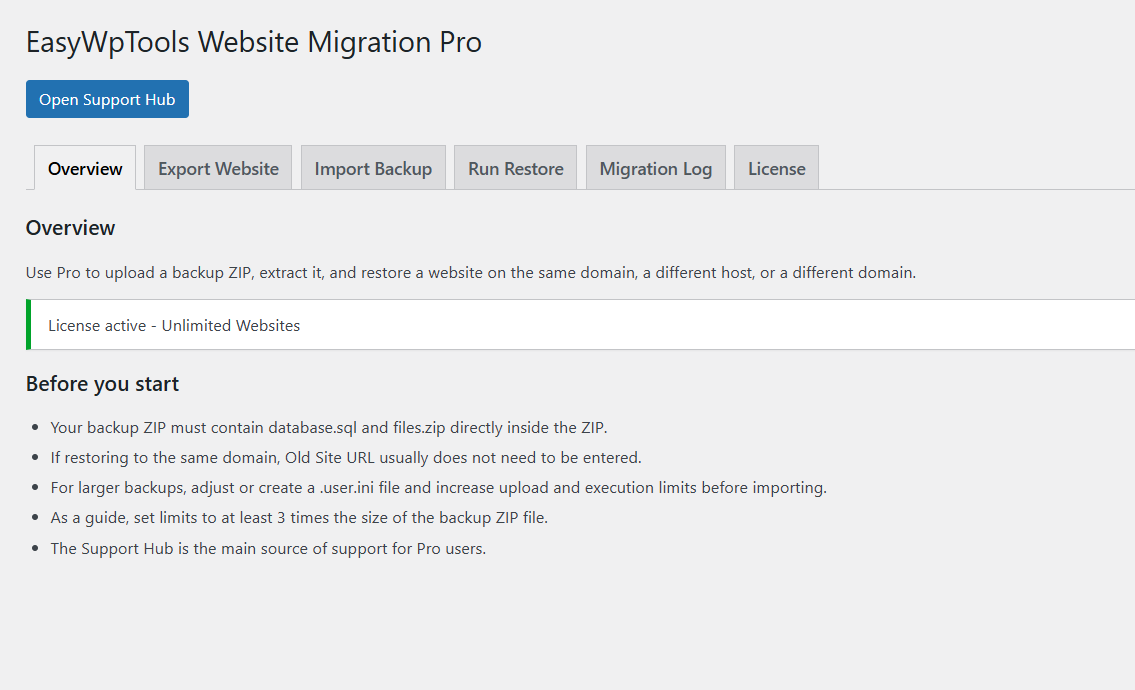
Full Website Export and Import
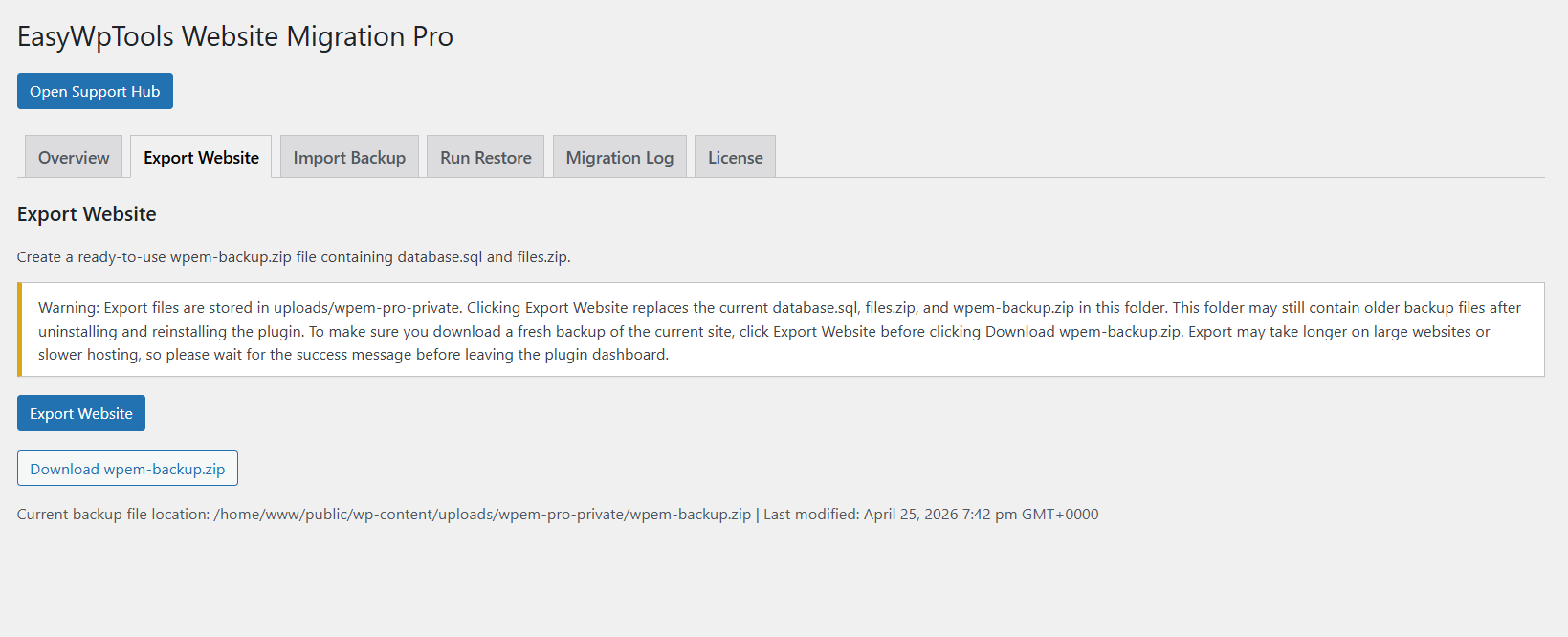
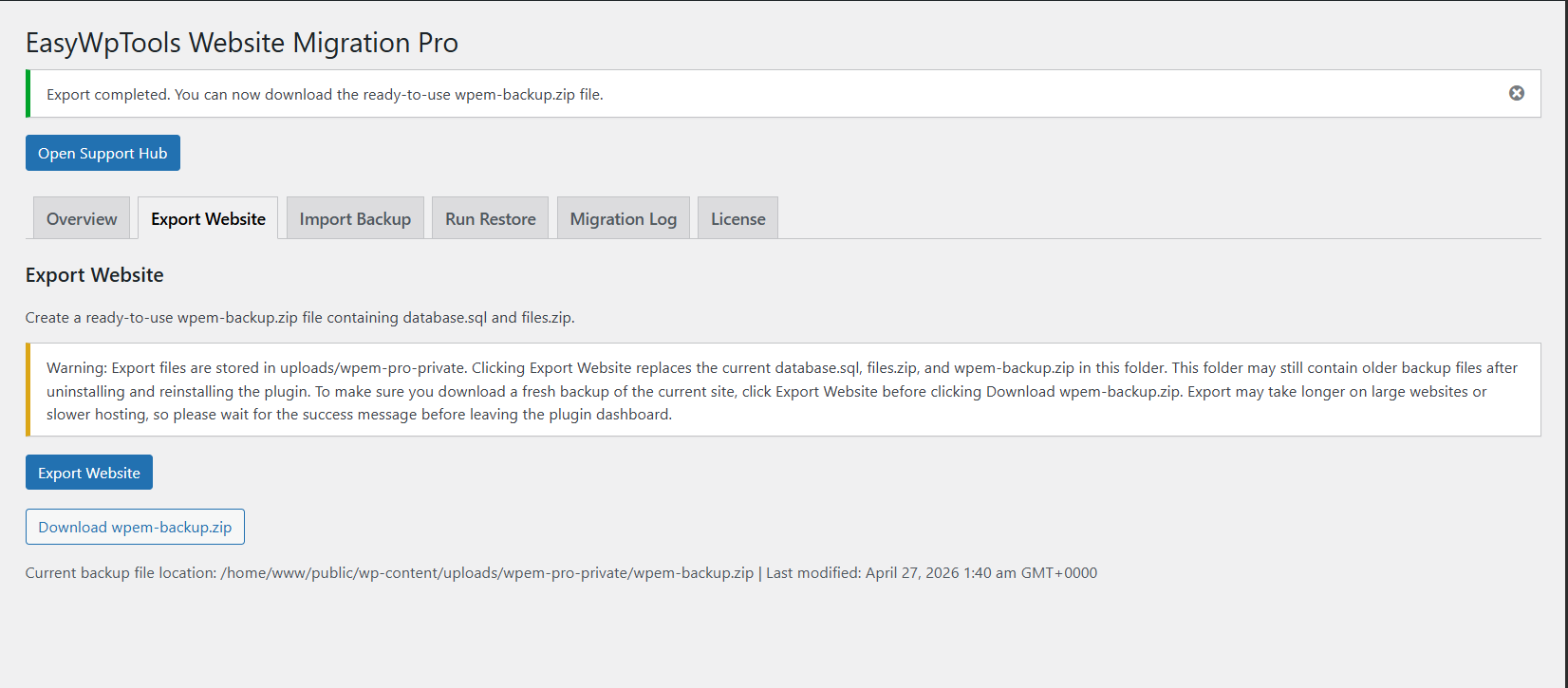
- Full website export.
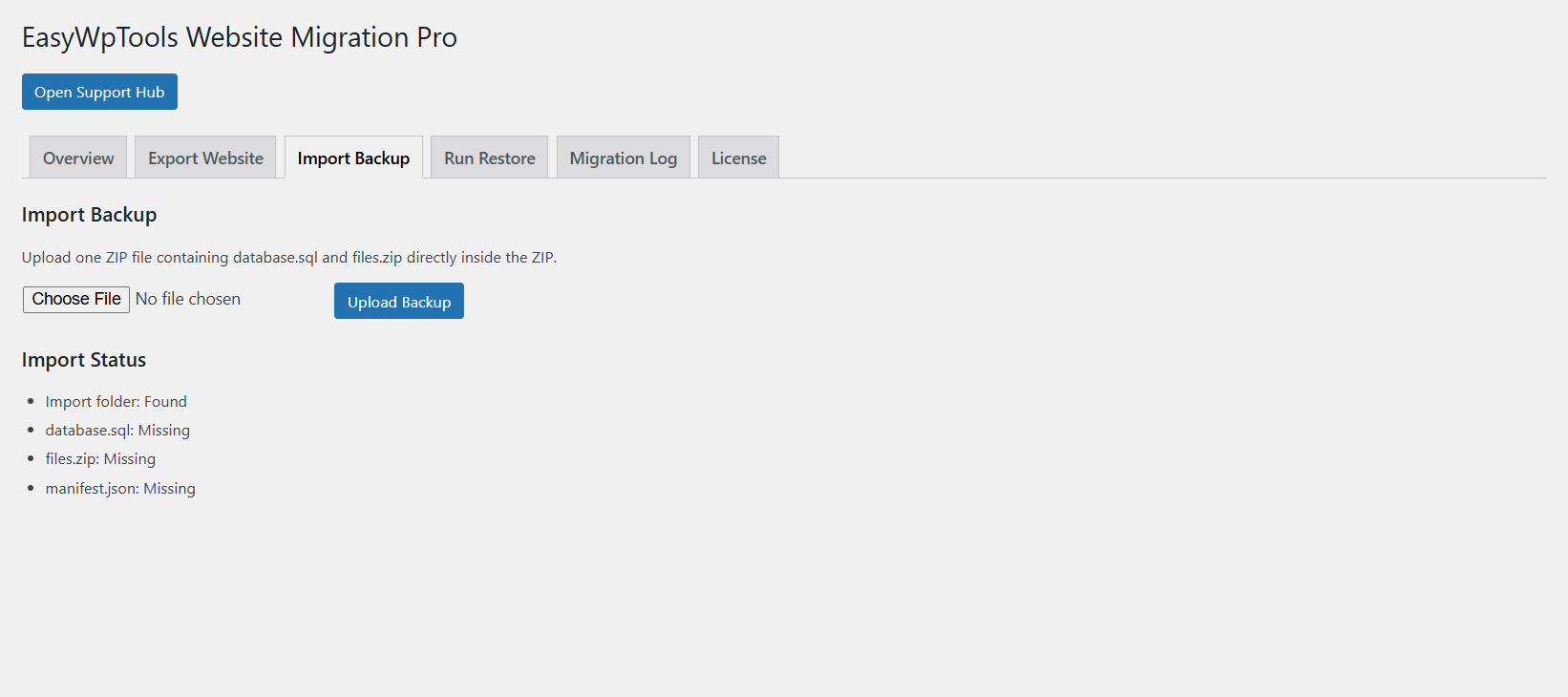
- Full website import.
- Full website restore.
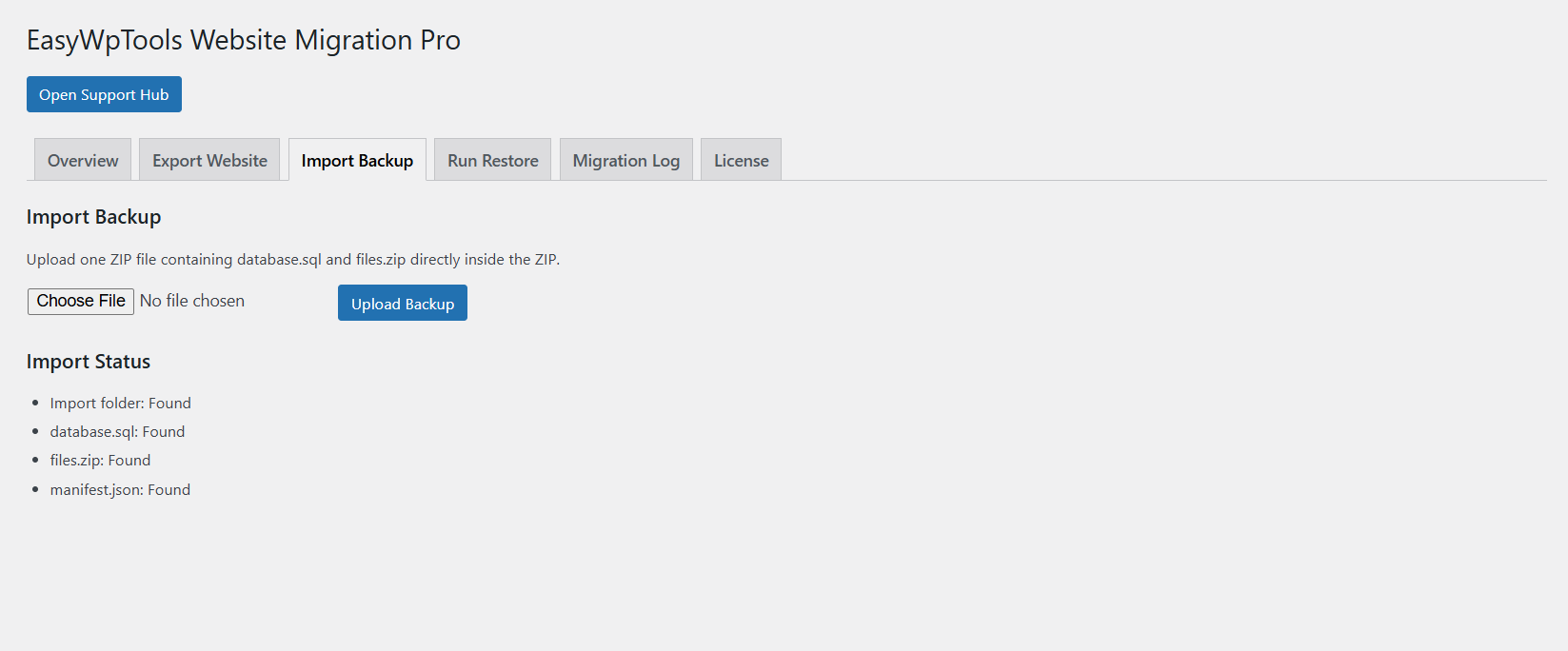
- Backup package upload and restore workflow.
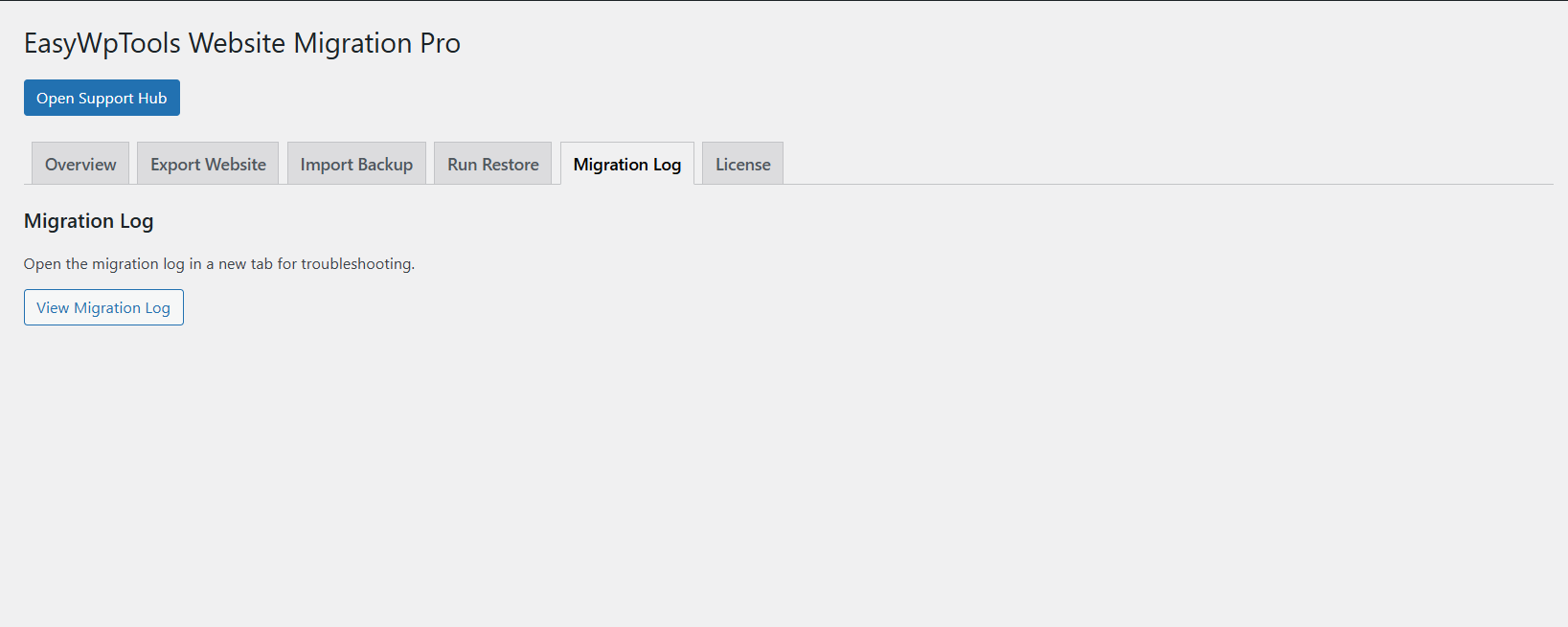
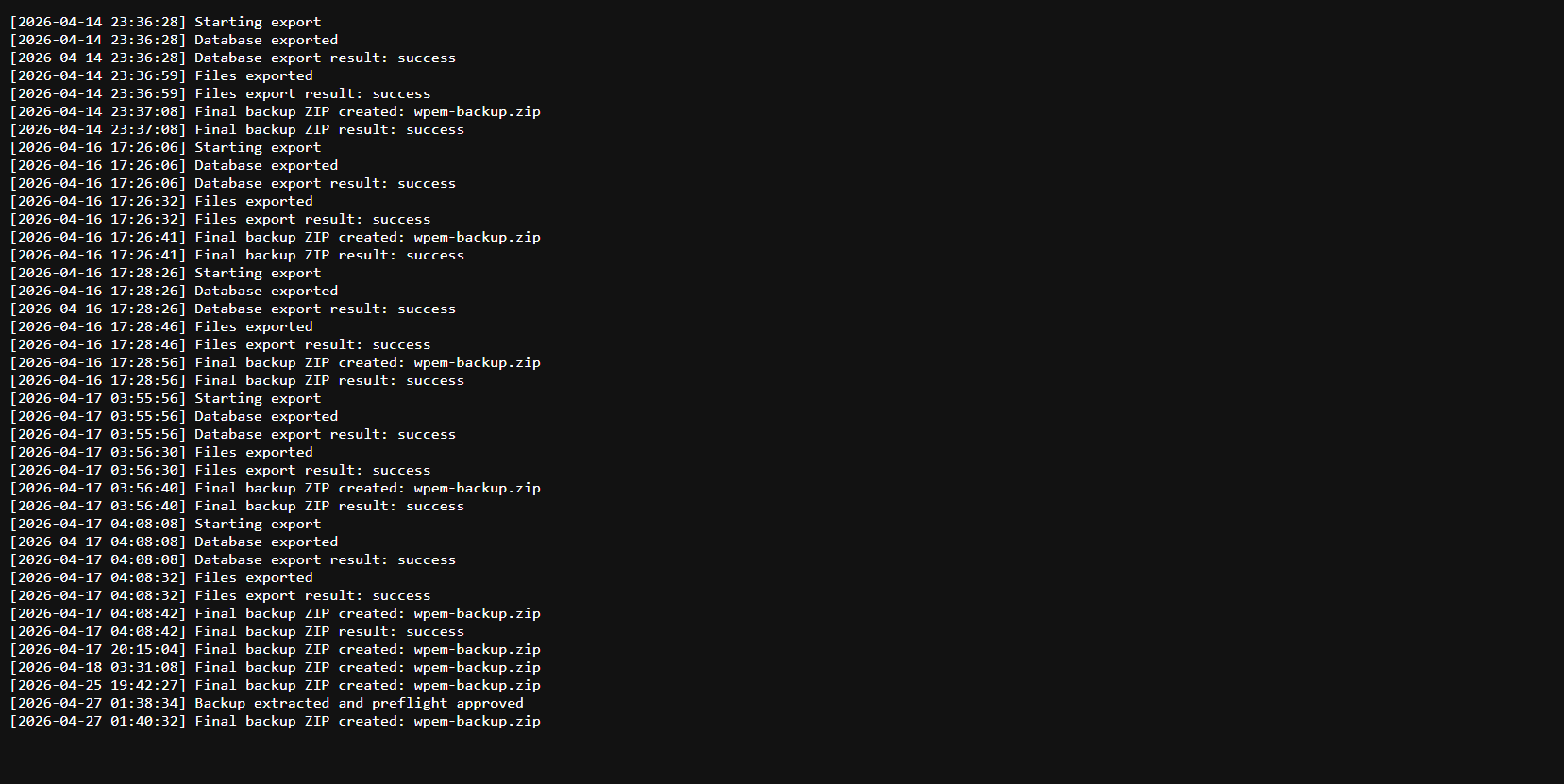
- Migration log for troubleshooting.
- Useful for website moves, staging copies and recovery tasks.
WordPress Migration Plugin to a New Domain or New Host
- Migrate a WordPress website to a new host.
- Migrate a WordPress website to a new domain.
- Move a site between hosting providers.
- Restore a site into a fresh WordPress installation.
- Automatic URL replacement where required.
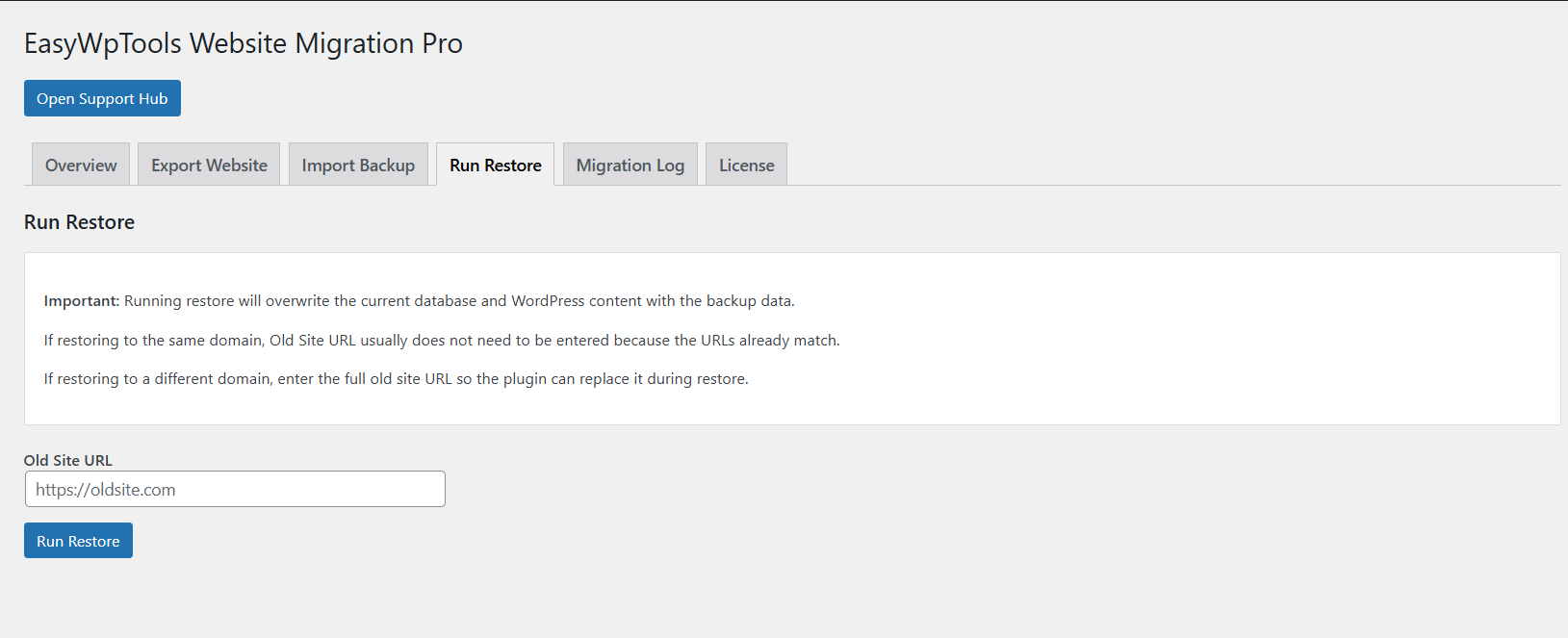
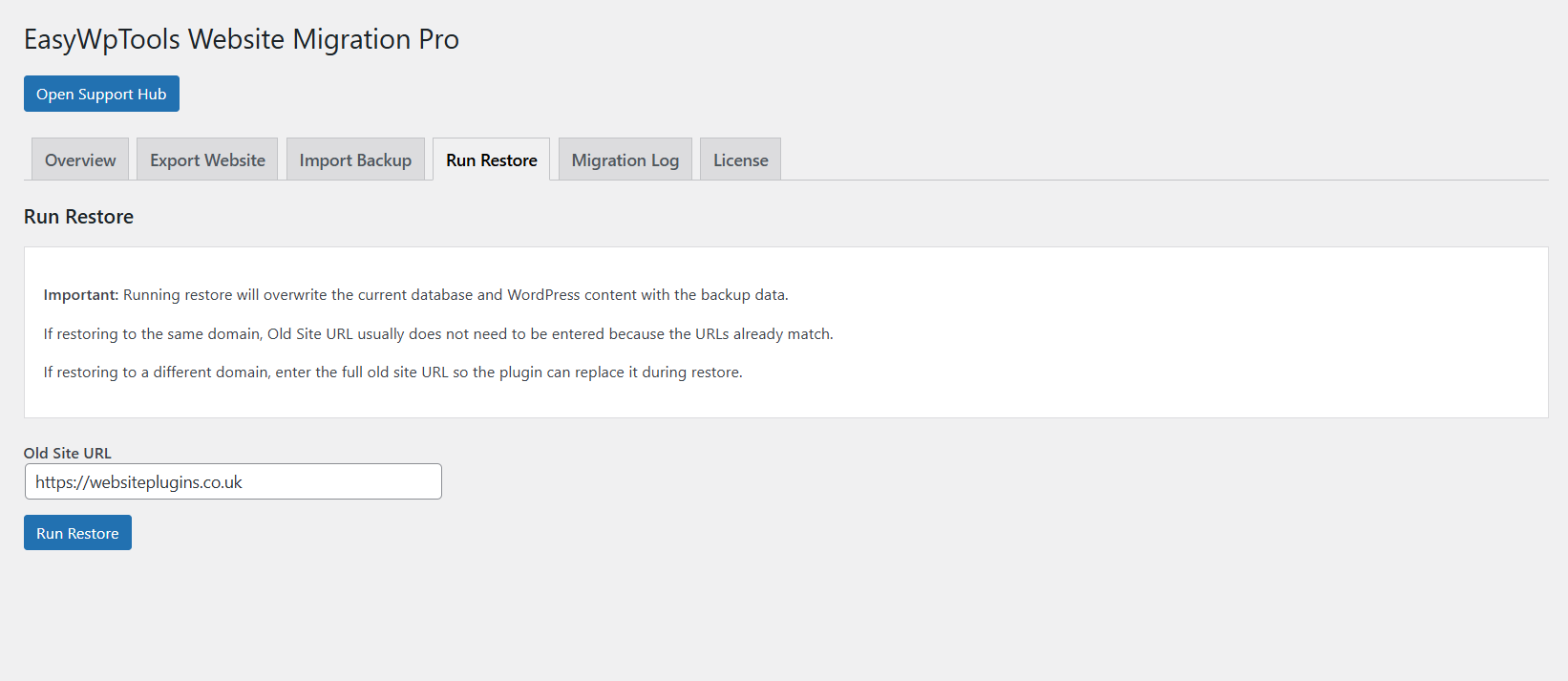
- Support for same-domain and different-domain restore workflows.
Backup Restore Plugin for WordPress Websites
Database Restore and Files Restore
- Database restore.
- Website files restore.
- Restore from backup.
- Recover websites after failed changes.
- Recover damaged WordPress installations.
- Restore after plugin conflicts, broken updates or hosting issues.
Structured Backup Format
The plugin uses a practical backup format designed for WordPress website recovery and transfer workflows.
database.sqlfor database content.files.zipfor website files.- Backup package workflow for upload and restore.
- Clear separation between database and file restore steps.
Website Recovery Plugin for WordPress
Restore a Website After Problems
- Restore a backup on the same host and same domain.
- Restore a backup on a different host with the same domain.
- Restore a backup on a different host and different domain.
- Recover websites after plugin conflicts.
- Recover websites after failed updates.
- Recover websites after server or hosting issues.
Clone a Website to Staging
- Clone a website to a staging environment.
- Clone a website to a development environment.
- Create safe testing copies before major changes.
- Prepare site copies for redesign, testing or troubleshooting.
WordPress Migration Plugin Workflow
Typical Migration Workflow
- Export the website backup from the source website.
- Prepare the target WordPress installation.
- Check hosting limits before uploading large backups.
- Activate your Pro license.
- Upload the backup package.
- Run the restore process.
- Allow the plugin time to complete database, file and URL replacement tasks.
- If required, update
wp-config.phpwith the restored database table prefix. - Log in again and carry out final checks.
Important Restore Note
After restore, WordPress may require the restored database table prefix to be set manually in wp-config.php.
If the restored website uses a different table prefix from the fresh WordPress installation, update $table_prefix to match the restored tables.
Hosting and Upload Requirements
Large website backups may require suitable hosting limits. Before restoring a large backup, check that your hosting account allows enough upload size, memory and execution time for the restore process.
- Large websites may need higher upload limits.
- Some hosts may restrict long-running restore tasks.
- Server timeout limits can affect large migrations.
- Always keep an independent backup before starting a restore.
WordPress Website Transfer Plugin Support
Support Hub
Eligible Pro customers receive access to the EasyWpTools Support Hub for setup help, migration guidance, troubleshooting information, updates and product resources during the included support period.
After the included 12 month support period ends, customers should use the Support Hub and available self-service resources unless an exceptional account or access issue applies.
Why Choose This WordPress Migration Plugin?
EasyWpTools Website Migration Backup & Restore Pro is built for practical WordPress recovery and transfer workflows. It helps website owners, developers and agencies move, restore, clone and recover websites using a clear backup and restore process.
Best For
- Website owners moving to a new host.
- Developers transferring client websites.
- Agencies creating staging or development copies.
- WooCommerce and WordPress site owners needing restore options.
- Users recovering from broken updates or plugin conflicts.
- Anyone needing a practical WordPress Migration Plugin workflow.
Key Feature Summary
- WordPress website migration.
- Website backup export.
- Website backup import.
- Database restore.
- File restore.
- Domain replacement support.
- New host migration.
- Website recovery workflow.
- Staging and development cloning.
- Migration logs for troubleshooting.
Translations Available
EasyWpTools Website Backup Restore & Migration Pro includes translations for the following languages.
- Albanian
- Macedonian
- Serbian
- Bulgarian
- Croatian
- French (France)
- German
- Polish
- Russian
- Turkish
Free Version Also Available
Want to try the EasyWpTools workflow first? The Free version is also available and can be used to create backup exports before upgrading to Pro.
Move, Restore or Recover Your WordPress Website
This WordPress Migration Plugin helps you transfer websites, restore backups, recover damaged installations and create staging copies with a practical WordPress workflow.
Reviews
There are no reviews yet.