

GTIN Manager & SKU Generator for WooCommerce v1.1.0
Import GTIN codes into WooCommerce native unique ID fields, bulk assign identifiers to products, generate missing SKUs, preview printable barcodes, and report missing or duplicate identifiers.
Description
GTIN Manager & SKU Generator for WooCommerce helps store owners manage product identifiers efficiently using WooCommerce native product fields.
Version 1.1.0 includes:
GTIN Import
Import GTIN codes and apply them to WooCommerce native Global Unique ID fields where a product match is found.
Bulk Assignment
Store imported GTINs in an identifier pool and assign them in bulk to products missing GTIN values.
SKU Generation
Generate missing SKUs using custom patterns based on product ID, title, category, and random placeholders.
Reports & Barcodes
Preview barcodes, print labels, detect duplicates, and review missing SKU or GTIN data.
Main Features
- Uses WooCommerce native SKU and Global Unique ID fields
- Imports GTIN codes using CSV-style rows
- Auto-matches GTINs to products by SKU or Product ID
- Stores unmatched GTINs in a reusable identifier pool
- Bulk assigns GTINs to products missing identifiers
- Generates missing SKUs using custom patterns
- Supports category-based filtering and assignment
- Displays barcode previews for printable labels
- Reports missing identifiers and duplicate GTIN values
- Shows Product ID in product lists and plugin tables
Installation
- Upload the plugin folder to
/wp-content/plugins/ - Activate the plugin through the WordPress Plugins screen
- Make sure WooCommerce is installed and active
- Open
Products → GTIN & SKUin the WordPress admin menu
Overview Tab
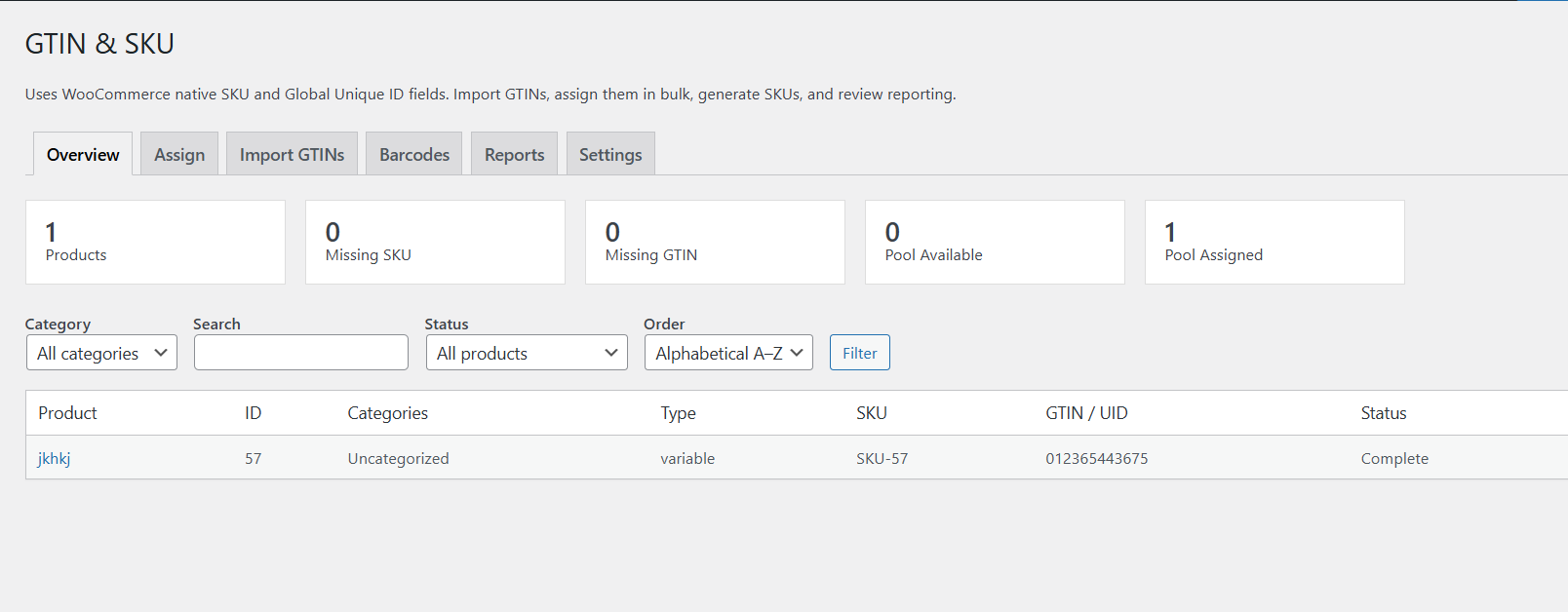
The Overview tab gives you a summary of your WooCommerce product identifier data.
It displays statistics such as:
- Total products
- Products missing SKU
- Products missing GTIN
- Available GTINs in the pool
- Assigned GTINs in the pool
You can filter products by:
- Category
- Search term
- Status
- Sort order
Assign Tab
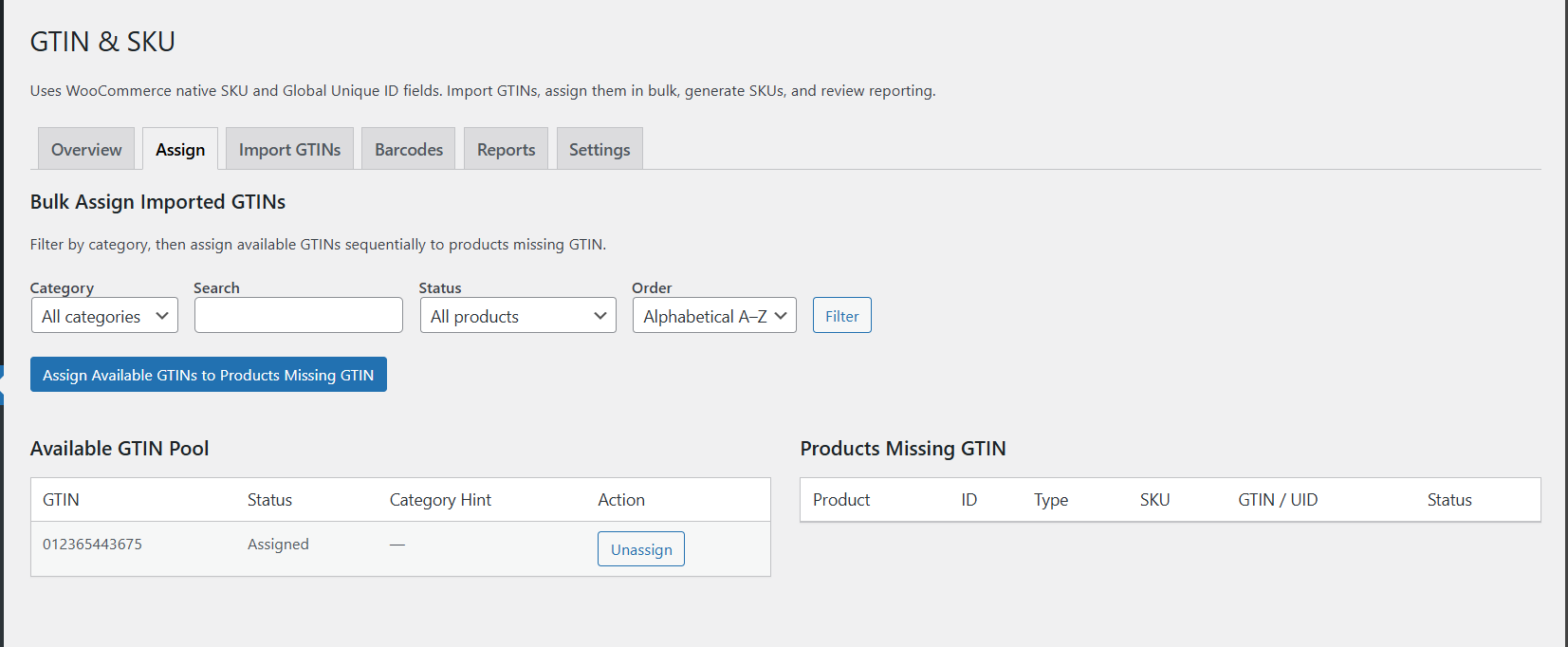
The Assign tab allows you to assign imported GTIN identifiers to products missing GTIN values.
- Choose filters such as category or status
- Review the available GTIN pool
- Review products missing GTIN
- Click
Assign Available GTINs to Products Missing GTIN
You can also manually assign a GTIN from the pool by entering a Product ID.
If needed, assigned identifiers can be unassigned and returned to the pool.
Import GTINs Tab
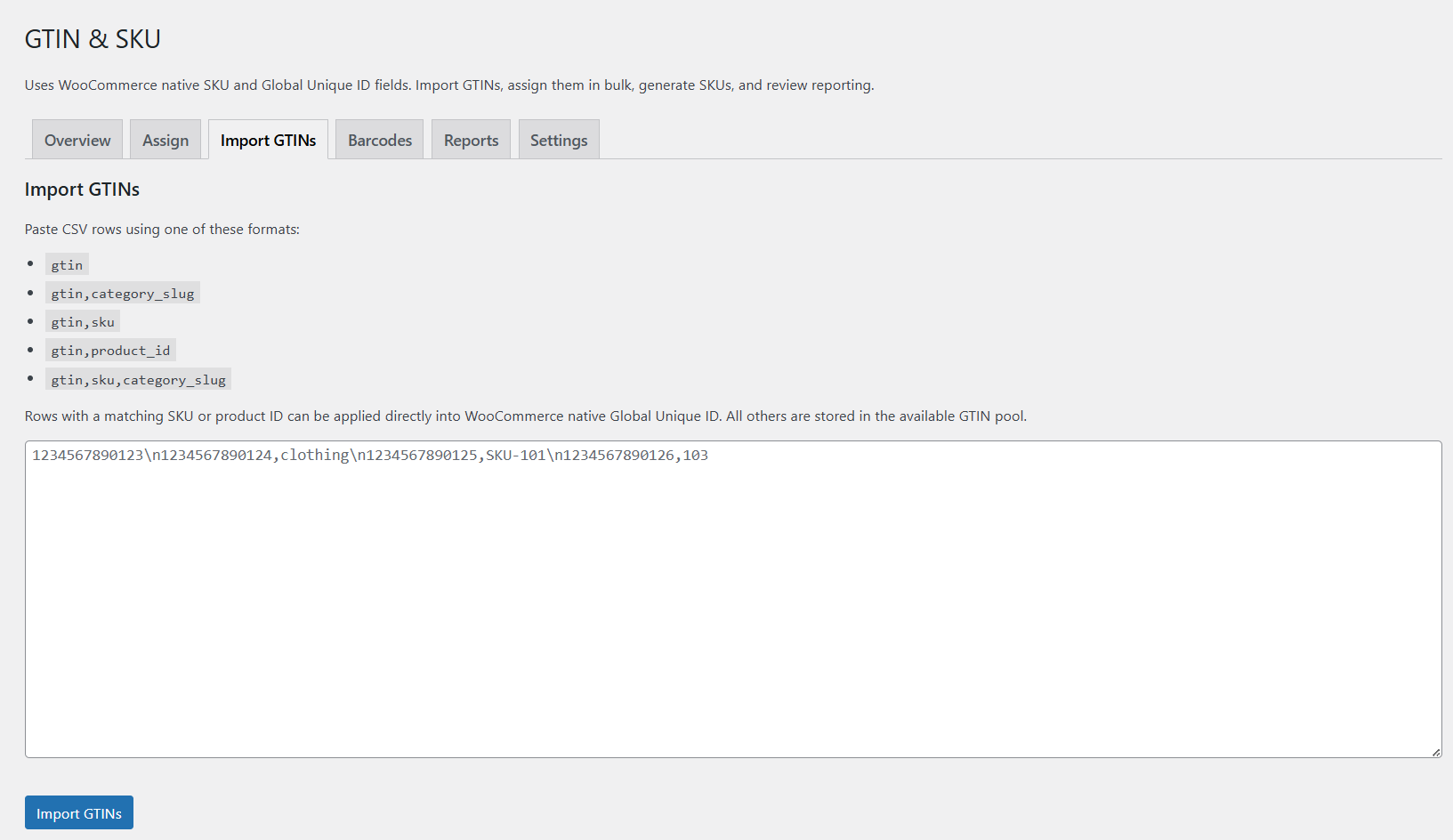
The Import GTINs tab accepts pasted CSV-style rows.
Each line may contain only a GTIN, or a GTIN plus matching data such as SKU, Product ID, or category slug.
If a matching product is found and its Global Unique ID field is empty, the GTIN is applied immediately.
If no matching product is found, the GTIN is stored in the available identifier pool.
Barcodes Tab
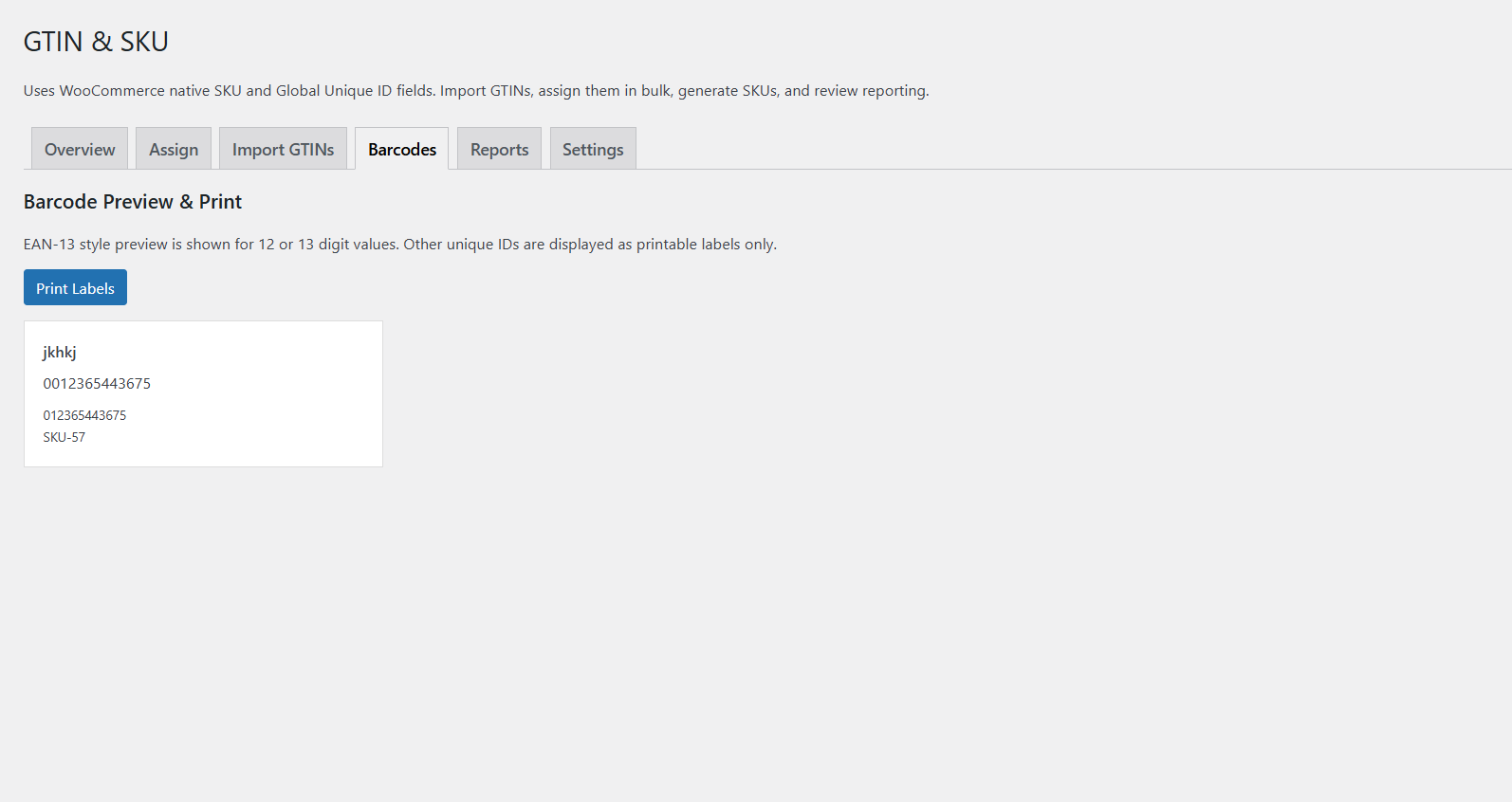
The Barcodes tab displays barcode previews for products with GTIN values.
The plugin generates an EAN-13 style barcode preview for supported identifiers and printable labels for other values.
You can use the browser print button to print barcode labels directly from the page.
- Barcode preview
- Product name display
- SKU display
- Printable labels
Reports Tab
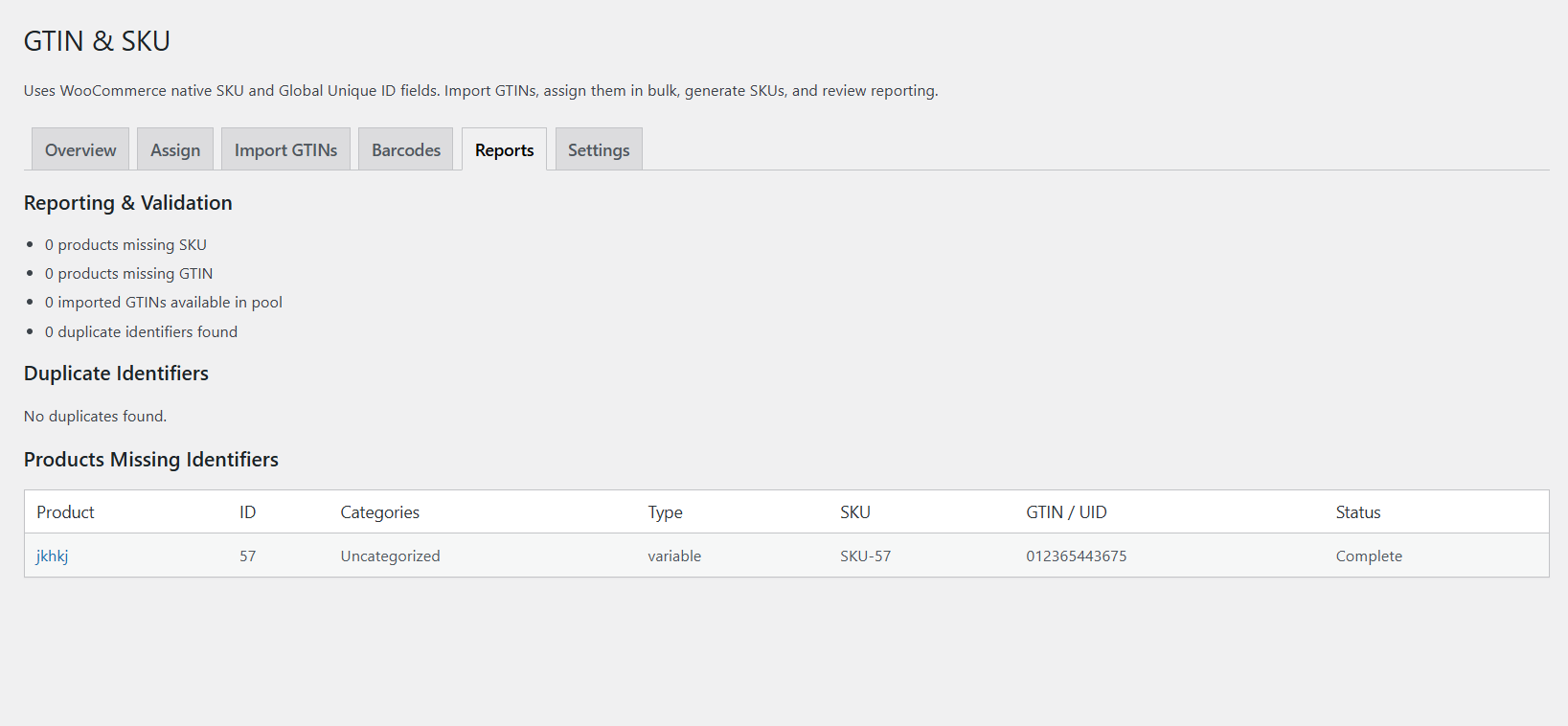
The Reports tab helps you identify missing or duplicate product identifiers.
Reports include:
- Products missing SKU
- Products missing GTIN
- Available GTIN count in the pool
- Duplicate GTIN detection
Duplicate GTIN identifiers are listed with direct links to the affected products.
Settings Tab
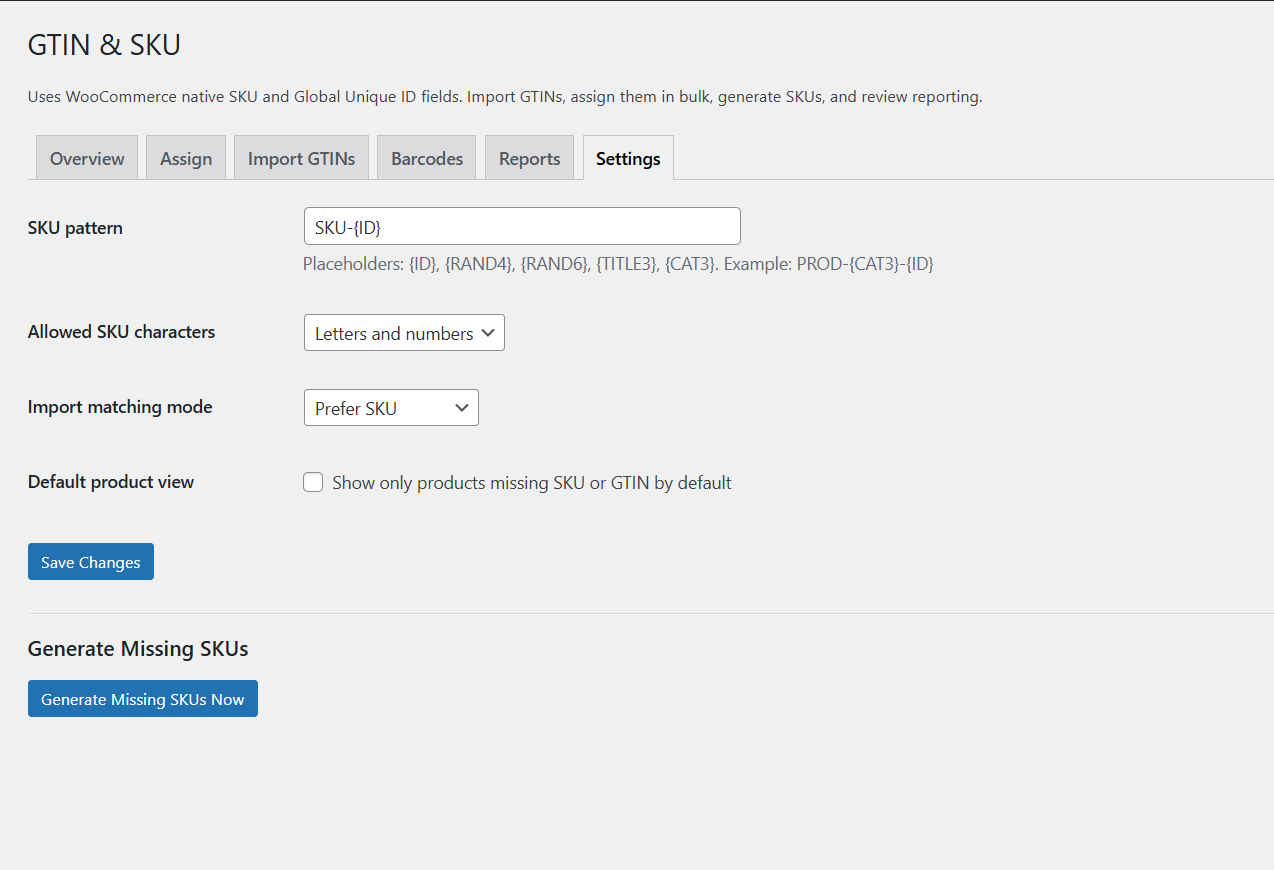
The Settings tab controls how SKU generation and import matching work.
Available options include:
- SKU pattern
- Allowed SKU characters
- Import matching mode
- Default product view
You can also generate missing SKUs manually from this tab.
SKU Pattern Guide
The plugin supports dynamic SKU pattern placeholders.
Supported placeholders:
{ID}= Product ID{RAND4}= Random 4 characters{RAND6}= Random 6 characters{TITLE3}= First 3 characters of product title{CAT3}= First 3 characters of first category name
Example patterns:
SKU-{ID}
PROD-{CAT3}-{ID}
ITEM-{TITLE3}-{RAND4}
Example generated SKUs:
SKU-102
PROD-SHO-104
ITEM-TSH-A9K2
GTIN Import Formats
Supported import row formats:
gtin
gtin,category_slug
gtin,sku
gtin,product_id
gtin,sku,category_slug
Examples:
1234567890123
1234567890124,clothing
1234567890125,SKU-100
1234567890126,203
1234567890127,SKU-101,footwear
Accepted GTIN lengths:
- 8 digits
- 12 digits
- 13 digits
- 14 digits
Barcode Preview & Print
Products with 12-digit or 13-digit identifiers can display an EAN-13 style preview.
Other identifiers are displayed as printable labels.
To print:
- Open the
Barcodestab - Review the product labels shown
- Click
Print Labels - Use your browser print dialog
Duplicate Detection
The plugin scans WooCommerce products for duplicate GTIN values stored in the native Global Unique ID field.
If duplicates are found, the Reports tab will show:
- The duplicate GTIN value
- All affected product names
- Direct links to edit those products
This helps prevent catalog issues for feeds, barcodes, and product identification.
Common Problems
Imported GTIN did not apply to a product
Meaning: The product may not have matched the imported SKU or Product ID, or the product already had a GTIN value.
Fix: Check your import row format and the current matching mode in Settings.
GTIN went into the pool instead of applying directly
Meaning: No matching product was found, or the matched product already had a GTIN assigned.
Fix: Use the Assign tab or manually apply it by Product ID.
Bulk assignment did not assign all GTINs
Meaning: There may not have been enough matching products missing GTIN values, or the pool filter limited the available GTINs.
Fix: Check category filters and identifier status before re-running assignment.
SKU generation created an unexpected value
Meaning: The current SKU pattern or allowed character setting may have removed some characters.
Fix: Review the SKU pattern and character type settings in the Settings tab.
Barcode preview is not shown as EAN-13
Meaning: The identifier is not 12 or 13 digits long.
Fix: Use a valid 12-digit or 13-digit GTIN if you need EAN-13 style output.
No matching products found
Meaning: Filters such as category, status, or search may be too restrictive.
Fix: Clear or reduce filters and try again.
Recommended Workflow
- Import GTINs using the Import GTINs tab
- Review which GTINs were applied directly and which entered the pool
- Generate missing SKUs if needed
- Use category filters to narrow products
- Bulk assign GTINs to products missing identifiers
- Review reports for missing values and duplicates
- Print barcode labels from the Barcodes tab if required
Translations
This plugin includes translation support for the following languages:
- English
- Spanish*Española
- French*Français
- German*Deutsch
- Italian*Italiana
- Dutch*Nederlands
- Portuguese*Português
- Macedonian*Македонски
- Serbian*Српски
- Croatian*Hrvatski
- Bulgarian*Блгарски
- Russian*Русский
If your site language is supported and the relevant translation files are included, the plugin interface will display in your selected WordPress language where available.
Important Notes
- This plugin uses WooCommerce native fields and does not add a duplicate GTIN field
- Always review imported GTIN values before bulk assignment on live stores
- Barcode previews are intended for admin printing and product label workflows
- SKU generation only applies to products missing SKU values
- Bulk assignment works best when products are filtered carefully
- Duplicate GTIN values can affect feeds, reporting, and external systems
Screenshots Gallery
Click any screenshot to view a larger version.
Frequently Asked Questions
Does this plugin create a separate GTIN field?
No. It uses WooCommerce’s native Global Unique ID field.
Can I import GTINs by SKU?
Yes. You can import rows containing GTIN and SKU values.
Can I import GTINs by Product ID?
Yes. You can import rows containing GTIN and Product ID values.
Can I generate SKUs for products that already have one?
No. SKU generation only applies to products that are missing a SKU.
Can I manually apply a GTIN from the pool?
Yes. Use the Product ID box in the Assign tab.
Can I print barcode labels?
Yes. Use the Barcodes tab and the browser print function.
Where do duplicate GTINs appear?
They are listed in the Reports tab with links to the affected products.
Changelog
1.1.0
- Added GTIN import system
- Added identifier pool management
- Added bulk assignment tools
- Added barcode preview and printing
- Added reports for missing and duplicate identifiers
- Added SKU generation using custom patterns
- Added category filtering and sorting
- Added Product ID column support
1.0.0
- Initial plugin concept and base WooCommerce integration