

EasyWpTools Website Migration v1.0.3
Here is what makes EasyWpTools Website Migration one of the best free website migration plugins for moving a WordPress website to a new domain, move website to a new host, or within the same host and domain for smooth, controlled website migration:
EasyWpTools Website Migration is a free WordPress website migration plugin and site migration tool that helps you export, import, and restore a complete website. Use it to migrate WordPress site from one host to another, migrate a WordPress site to a new host, move a WordPress website to a new domain, restore a backup on the same host, or transfer a site within the same domain using a fresh WordPress base installation.
An easy WordPress migration plugin with no limits and no file size restrictions.
Description
EasyWpTools Migration is a Free WordPress migration plugin, easy wordpress migration to use for exporting and restoring complete websites. It works as a WordPress website migration plugin, WordPress site transfer plugin, and website migration tool for moving websites between hosts, between domains, or within the same hosting environment.
This free WordPress migration plugin can be used to:
- Easy migrate WordPress from one host to another (hosting provider)
- Move a WordPress website to another domain
- Restore a WordPress website on the same host
- Transfer a WordPress site within the same domain
- Migrate a website from staging to live
This is a simple migration plugin that works by exporting your original website into two files:
database.sqlfiles.zip
These two export files contain your original website.
The target WordPress installation is only the base needed to continue with the website restore process. When you click Run Restore, the plugin replaces that base installation step by step with your original website database, files, folders, and URLs.
Website Export Features
Website export, WordPress database migration export, file export, and separate download of database.sql and files.zip.
No Panic Migration Promise
Website migrations can feel risky — especially when something unexpected happens.
WP Easy Migration is designed to remove that uncertainty.
We don’t hide important steps — we explain them.
- You’ll know exactly what to expect before you run a restore
- You’ll understand why your site may temporarily stop working during migration
- You’ll be guided through the exact steps to bring your site back online
No surprises. No confusion. No panic.
By preparing you for every stage of the process, you stay in control of your website from start to finish.
Still unsure? If you ever feel stuck or uncertain, you can contact us through the website and we’ll guide you or assist you directly.
Import Features
Backup upload, extraction, restore status checks, and import preparation for full WordPress website migration.
Restore Features
Database restore, file restore, safe URL replacement, and temporary import cleanup.
Extra Tools
Manual Old Site URL field and migration log file support.
Main Workflow
This workflow can be used to migrate WordPress from one host to another, migrate a WordPress site to a new host, transfer a WordPress website to another domain, or restore a WordPress backup within the same hosting account.
- Install WP Easy Migration on the old website.
- Export the website.
- Download
database.sqlandfiles.zip. - Place those two files into one ZIP file named
wpem-backup.zip. - Install WP Easy Migration on the target WordPress installation.
- Upload
wpem-backup.zip. - Run Restore.
- Enter the Old Site URL if the domain has changed.
- Wait for migration to complete.
Installation
- Upload the plugin folder to
/wp-content/plugins/ - Activate the plugin through the WordPress Plugins screen
- Open
WP Easy Migrationin the WordPress admin menu
Screenshots Gallery
Click any screenshot to view a larger version.
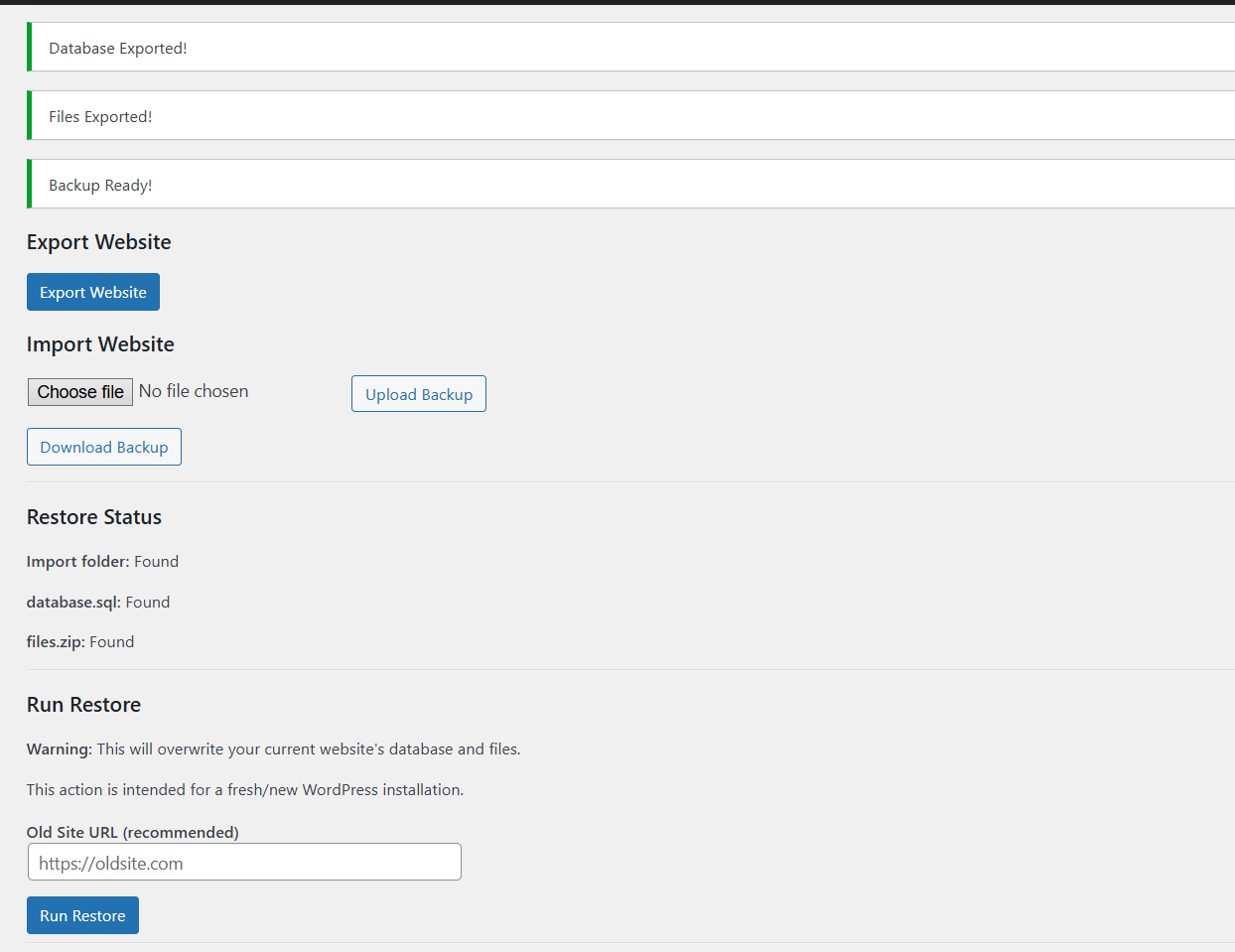
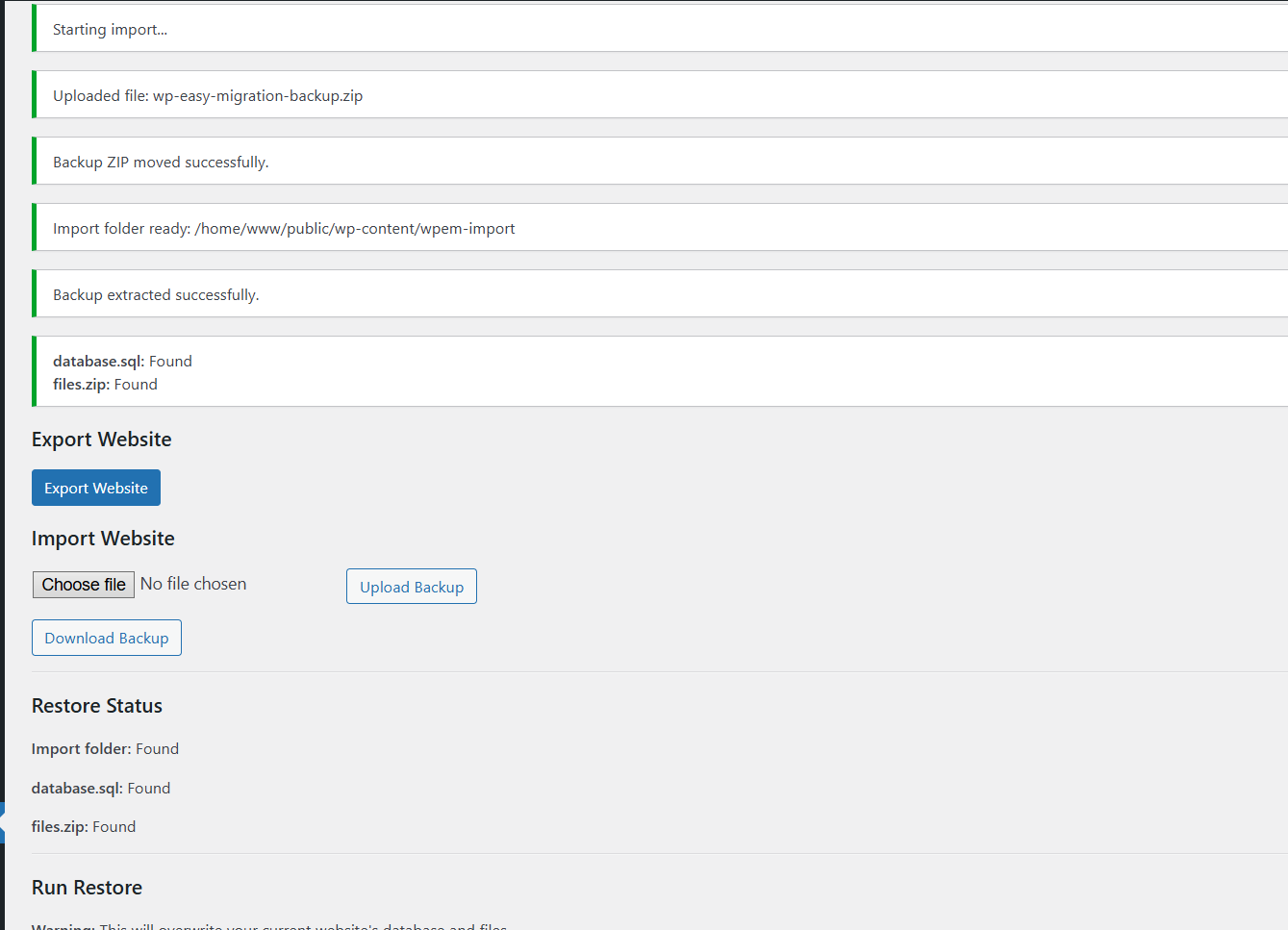
Exporting a Website
Use these steps on the source website:
- Install and activate WP Easy Migration
- Open
WP Easy Migrationin the admin menu - Click
Export Website - Wait until export completes
- Download
database.sql - Download
files.zip
The plugin creates two important files:
database.sqlfiles.zip
These files together represent your original website and are used by the plugin to migrate WordPress from one host to another, move a website to a new domain, or restore it on the same host.
Importing a Website
Use these steps on the target WordPress installation:
- Install and activate WP Easy Migration
- Open
WP Easy Migration - Create
wpem-backup.zipcontainingdatabase.sqlandfiles.zip - Under
Import Website, choosewpem-backup.zip - Click
Upload Backup - Wait until the plugin shows:
- Import folder: Found
- database.sql: Found
- files.zip: Found
When those items are found, the backup is ready to restore.
Upload Backup keeps loading and does not complete, that may be a sign that the backup file is too large for your current PHP upload settings.Restoring a Website
After uploading the backup on the target WordPress installation:
- Scroll to
Run Restore - Enter the
Old Site URLif needed - Click
Run Restore - Confirm the warning
- Wait for the plugin to finish
- Restoring database
- Restoring files
- Replacing URLs
- Cleaning up temporary files
The Run Restore step is where the plugin performs the actual WordPress website migration by replacing the base installation with your original website database and files.
Run Restore, the plugin starts replacing that base installation with your original website from the backup files.
Run Restore, your website may temporarily stop working or show an error page.
This is expected behaviour. The plugin replaces the database, and the table prefix may no longer match your current wp-config.php.
Final Step (Required)
- Access your site via SFTP or File Manager
- Open
wp-config.php - Find:
$table_prefix = 'wp_';
- Replace it with the prefix from your backup (example:
ewpm_) - Save the file
- Upload the updated file back to the same root folder and overwrite the original
- Refresh your website or go to
/wp-admin/
database.sql in your backup ZIP file.
wp-config.php, the website may take a few minutes to become available again, and in some cases longer depending on the hosting environment. You may need to log back into WordPress admin or access it through your hosting account directly.
Once the prefix matches, your website will load normally and the migration will be complete.
Old Site URL
What is the Old Site URL?
The Old Site URL is the full URL of the website you exported from.
Example:
https://oldsite.com
If you are moving the site to a new domain, the plugin uses this value to replace old URLs in the database with the new website URL.
Example migration:
- Old website:
https://oldsite.com - New website:
https://newsite.com
In this case, enter https://oldsite.com.
The plugin will replace old links, media URLs, and stored site references with the new website URL.
When should I use the Old Site URL field?
Use the Old Site URL field when:
- moving to a different domain
- moving from staging to live
- moving from one subdomain to another
- moving from one folder/site path to another
- the plugin cannot reliably detect the old domain automatically
Examples:
https://staging.example.com→https://example.comhttps://example.com/oldsite→https://example.comhttps://old-domain.com→https://new-domain.com
When can I leave it blank?
You can leave it blank if:
- the domain is staying the same
- you are restoring within the same environment
- the imported database already matches the current site URL
Note: Entering the Old Site URL manually is recommended when the domain changes.
What Gets Exported
WP Easy Migration exports:
- WordPress database
/wp-content/uploads/wp-content/themes/wp-content/plugins
The plugin excludes its own folder during file export:
/wp-content/plugins/wp-easy-migration
This prevents the migration plugin from overwriting itself during restore.
What Happens During Restore
During restore, the plugin:
- imports
database.sql - extracts and restores
files.zip - replaces the existing database and files in the target environment
- safely replaces old URLs with the new site URL
- updates
homeandsiteurl - removes temporary import files
This is why EasyWpTools Website Migration works as a WordPress database migration plugin, WordPress site transfer plugin, and full website migration tool.
The plugin also writes a log file here:
/wp-content/wpem-log.txt
Migration Log
The migration log is useful for troubleshooting.
Location:
/wp-content/wpem-log.txt
The log may contain entries such as:
- Starting export
- Database exported
- Files exported
- Starting import
- Backup extracted successfully
- Restoring database
- Restoring files
- Replacing URLs
- Restore completed
Common Error Codes
Upload error code: 1
Meaning: The uploaded backup file is larger than the PHP server limit.
Cause: The file exceeds upload_max_filesize.
Fix: Increase PHP upload limits in your hosting environment.
Recommended PHP Settings
For large websites and backups:
- Set limits to at least 2× the size of your backup ZIP file
- Increase execution time for large restores
upload_max_filesize = 512M
post_max_size = 512M
memory_limit = 512M
max_execution_time = 300
max_input_time = 300
Advanced (.user.ini)
If supported by your host, you can increase PHP limits further using a .user.ini file.
If you do not see a .user.ini file in your root directory, you can create one manually and place your PHP settings inside it.
After creating or editing the file:
- Refresh your website or log out and back in to apply changes
- Wait a few minutes for the server to update before starting the restore process
If your website becomes inaccessible after adding the file:
- Access your site via SFTP or File Manager
- Temporarily rename the
.user.inifile (for example:.user.ini.bak) - Check if the site loads again
- If the issue was not caused by the file, you can restore its original name
Once confirmed working, you can proceed with the migration.
upload_max_filesize = 4096M
post_max_size = 4096M
memory_limit = 4096M
max_execution_time = 2500
max_input_time = 2500
Upload error code: 2
Meaning: The uploaded file exceeds the maximum form size allowed by the server or application.
Fix: Increase upload limits and try again.
Upload error code: 3
Meaning: The file was only partially uploaded.
Fix: Try uploading again. Check server stability, timeouts, and upload limits.
Upload error code: 4
Meaning: No file was uploaded.
Fix: Choose a backup ZIP file and upload again.
Upload error code: 6
Meaning: Missing temporary folder on the server.
Fix: Your server is missing or misconfigured PHP temp storage. Contact your hosting provider.
Upload error code: 7
Meaning: The uploaded file could not be written to disk.
Fix: Check disk permissions, available storage, and server write access.
Upload error code: 8
Meaning: A PHP extension stopped the upload.
Fix: Check server PHP extensions or contact hosting support.
Other Common Problems
Security check failed for export/import/restore
Meaning: Nonce validation failed.
Fix: Refresh the plugin page and try again.
ZipArchive is not enabled on this server
Meaning: Your server does not have the PHP ZipArchive extension enabled.
Fix: Enable ZipArchive in PHP or ask your hosting provider to enable it.
wp-content is not writable
Meaning: The plugin cannot write backup or import files into /wp-content/.
Fix: Check file permissions and make sure /wp-content/ is writable by PHP.
Failed to move uploaded file into wp-content
Meaning: The server could not move the uploaded backup file.
Fix: Check permissions, available disk space, and PHP upload settings.
Failed to open the ZIP backup file
Meaning: The uploaded backup is not a valid ZIP or is corrupted.
Fix: Re-export the backup and upload it again.
Failed to extract the ZIP backup file
Meaning: The ZIP could not be extracted.
Fix: Check ZIP integrity, server permissions, and available space.
database.sql not found
Meaning: The imported backup does not contain database.sql.
Fix: Create a fresh export from the old site and upload it again.
files.zip not found
Meaning: The imported backup does not contain files.zip.
Fix: Create a fresh export from the old site and upload it again.
Could not determine old or new URL
Meaning: The plugin could not detect one of the required site URLs.
Fix: Enter the Old Site URL manually in the restore form.
Upload Backup keeps loading
Meaning: The backup file may be too large for the current PHP configuration.
Fix: Increase:
upload_max_filesizepost_max_sizememory_limitmax_execution_timemax_input_time
Make sure the values match the size of the website you are migrating.
Restore page becomes blank
Meaning: The restore may still be processing in the background, especially on larger websites.
Fix: Wait for the browser tab loader at the top to fully stop. Large websites may take longer to complete restore steps. If the page remains blank after the loader finishes, manually go to:
/wp-admin/
Then check the migrated site and log in again if needed.
Recommended Migration Method (Important)
For best results and to avoid database prefix issues, follow these steps carefully.
Step 1: Check Backup Prefix
- Extract your backup ZIP file
- Open
database.sqlin a text editor - Note the table prefix (example:
ewpm_)
Step 2: Prepare Target WordPress
- Install a fresh WordPress site as the base environment
- Install a File Manager plugin or use SFTP
- Increase PHP limits if needed (see server section)
- Make sure SSL is active and ready on the target domain
- Disable unnecessary plugins
Step 3: Import Backup
- Install and activate WP Easy Migration
- Create and upload your backup ZIP
- Wait until all restore files are detected
Step 4: Run Restore
- Enter Old Site URL if required
- Click Run Restore
- Wait until process completes
Step 5: Fix Table Prefix (Required)
If the site does not load after restore:
- Open
wp-config.php - Update
$table_prefixto match your backup - Upload the updated file back to the same root folder
- Save and refresh your site
Recommended Server Requirements
- PHP 7.4 or higher
- WordPress 6.0 or higher
- ZipArchive enabled
- Sufficient PHP upload and execution limits for your backup size
- Write access to
/wp-content/ - SSL certificate active on the target domain before migration
Important Notes
- This plugin works across different hosts, domains, or within the same environment
- The restore process overwrites the current database and files
- The target WordPress installation is used only as a base environment
- Always keep multiple backup copies before restoring
- Large websites may take longer to export, upload, and restore
- After restore, temporary import files are cleaned automatically
- Ensure your server supports ZipArchive and has sufficient file permissions
- The Restore Status section may show missing again after a successful restore because cleanup removed the temporary files
Frequently Asked Questions
Can I migrate WordPress from one host to another?
Yes. WP Easy Migration can be used to migrate WordPress from one host to another by exporting the original website and restoring it into the target WordPress installation.
Can I migrate a WordPress site to a new host for free?
Yes. WP Easy Migration is a free WordPress migration plugin that allows you to export and restore your website using database.sql and files.zip.
Can I use this as a WordPress site transfer plugin on the same host?
Yes. The plugin can also be used within the same hosting account or on the same domain, as long as you restore the backup into a WordPress base installation.
Does this plugin work as a WordPress database migration plugin?
Yes. The plugin exports and restores the WordPress database using database.sql, and it also restores the website files using files.zip.
Do I need WP Easy Migration installed on both websites?
Yes. Install it on the old website to export, and on the target website to import and restore.
What file should I move to the target website?
Create:
wpem-backup.zip
This ZIP must contain:
database.sqlfiles.zip
What should I enter in Old Site URL?
Enter the original domain of the exported website, for example:
https://oldsite.com
What if the target website uses the same domain?
You can usually leave the Old Site URL blank if the domain is not changing.
Where is the migration log?
Here:
/wp-content/wpem-log.txt
What should I do after a successful migration?
Check that the site loads correctly, confirm the table prefix matches if needed, and keep at least one backup copy stored safely.
Changelog
1.0.3
- Changed export workflow to provide separate downloads for
database.sqlandfiles.zip - Removed dependency on creating a final outer backup ZIP during export
- Added clearer Import Website instructions in plugin UI
- Added instructions for manually creating
wpem-backup.zip - Improved export stability for larger websites
- Improved troubleshooting logs for export and file handling
1.0.2
- Improved restore workflow and user guidance
- Added clear instructions for table prefix mismatch resolution
- Added UI warnings before restore execution
- Improved documentation for real-world migration scenarios
- Enhanced PHP configuration guidance for large backups
1.0.0
- Initial release
- Export database and files
- Create downloadable backup ZIP
- Import backup ZIP
- Restore database and files
- Safe URL replacement for serialized data
- Manual Old Site URL support
- Temporary import cleanup
- Migration log support